Git
Git is a version control system that lets you track changes in your project, go back to old versions, and collaborate safely with others.
Below is a concise “notes page” you can put on your website for web projects.
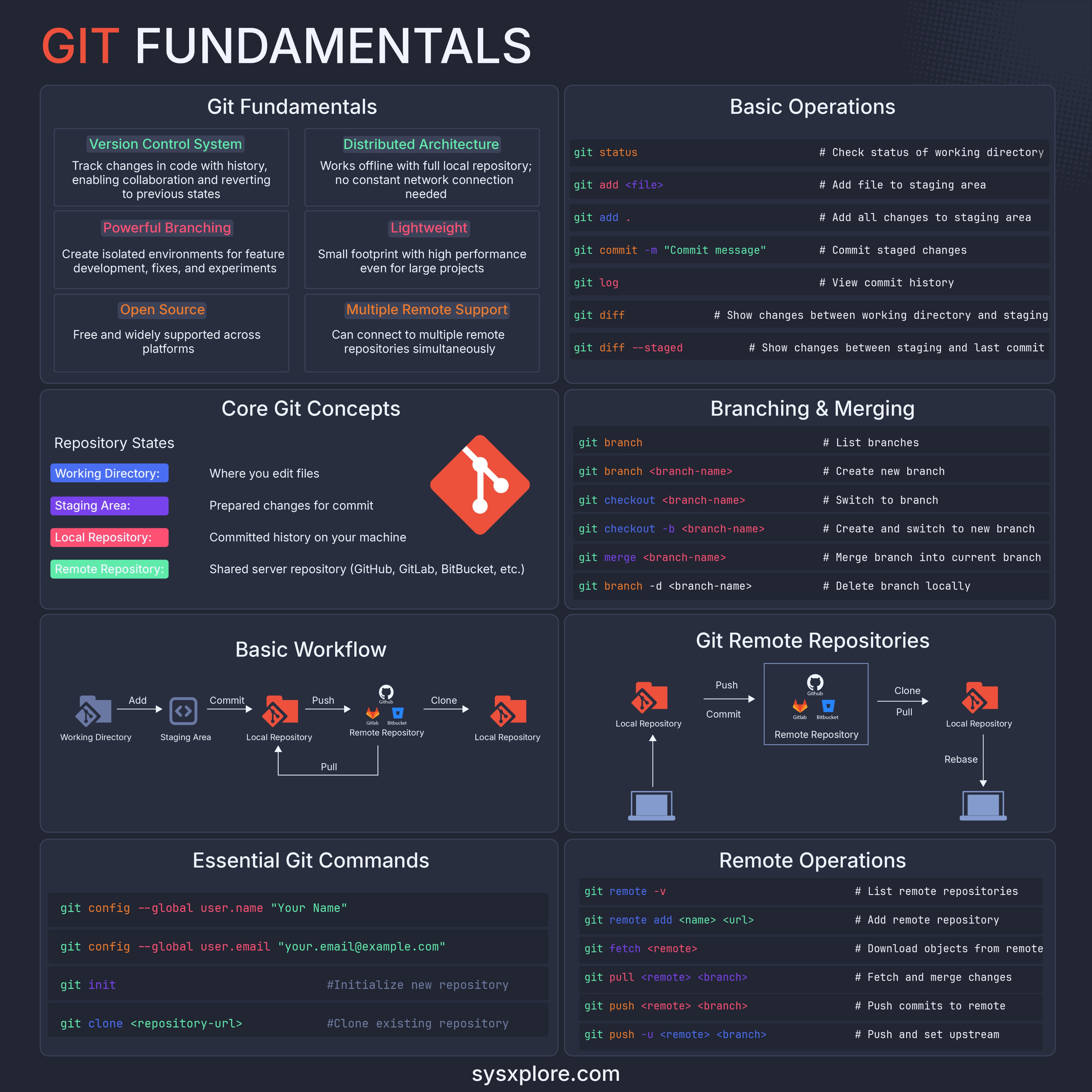
Core concepts
- Repository: Folder where Git tracks your project history.
- Working directory: Your actual project files that you edit.
- Staging area (index): Temporary area where you mark changes to be committed.
- Commit: Saved snapshot of staged changes with a message.
- Branch: Parallel line of development (e.g.
main,feature/login). - Remote: Online copy of your repo (e.g. GitHub, origin).
- HEAD: Pointer to the current commit/branch you are on.
Basic setup
git --version           # Check Git is installed
git config --global user.name "Your Name"
git config --global user.email "you@example.com"
git config --global init.defaultBranch main
Start a new project
cd my-project
git init                # Create new repo in current folder
git status              # See changed/unstaged files
git add index.html      # Stage one file
git add .               # Stage all changes
git commit -m "Initial commit"   # Save snapshot
Connect to GitHub
- Create an empty repo on GitHub (without README).
- Link and push:
git remote add origin https://github.com/USER/REPO.git
git branch -M main
git push -u origin main
Clone an existing project
git clone https://github.com/USER/REPO.git
cd REPO
git status
Daily workflow (web dev)
Typical loop for editing your website.
# 1. Get latest code
git pull origin main

# 2. Work & check
git status
git diff                 # See what changed

# 3. Stage & commit
git add .
git commit -m "Describe what you changed"

# 4. Push online
git push origin main
Branching and merging
git branch               # List local branches
git branch feature-ui    # Create branch
git checkout feature-ui  # Switch to branch
# (do work, commit etc.)
git checkout main
git merge feature-ui     # Merge feature into main
- Use feature branches for new pages/components.
- Delete merged branch:
git branch -d feature-ui.
Working with remote
git remote -v                # Show remotes
git push origin main         # Push current branch
git pull origin main         # Fetch + merge
git fetch origin             # Only download, do not merge
git pull --rebase origin main# Rebase local onto remote
Undo and fix mistakes
Be careful with history-rewriting on shared branches.
git status                       # First, inspect state
git restore file.html            # Discard changes in file
git restore .                    # Discard all uncommitted changes
git reset --soft HEAD~1          # Undo last commit, keep changes staged
git reset --mixed HEAD~1         # Undo last commit, keep changes unstaged
git reset --hard HEAD~1          # WARNING: discard commit + changes
git revert <commit-hash>         # New commit that undoes given commit
Stash temporary changes
Useful when you need to switch branches without committing.
git stash               # Save uncommitted changes
git stash list          # Show stashes
git stash apply         # Reapply latest stash
git stash drop          # Delete one stash
git stash clear         # Delete all stashes
View history
git log                          # Full history
git log --oneline --graph --all  # Compact graph
git show <commit-hash>           # See details of a commit
git diff HEAD~1 HEAD             # Compare two commits
Useful patterns for web projects
- Ignore build artifacts: add
node_modules/,dist/,.env, etc. to.gitignore. - Commit often with clear messages (e.g.
feat: add contact page). - Keep
mainalways deployable and use branches for experiments.
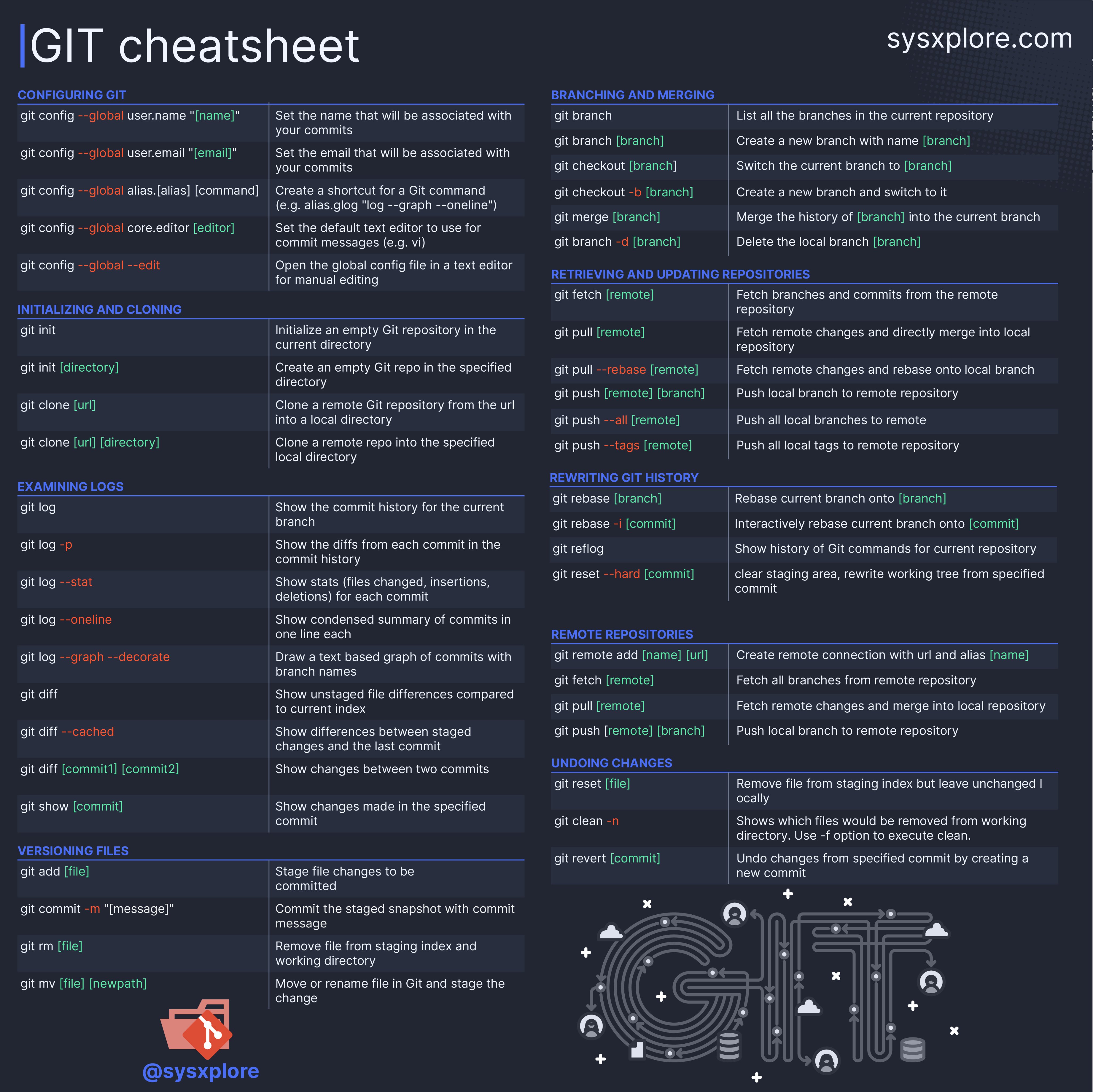
Mini cheat sheet table
| Task | Command (examples) |
|---|---|
| Init repo | git init |
| Check status | git status |
| Stage changes | git add file, git add . |
| Commit | git commit -m "message" |
| Create branch | git branch feature |
| Switch branch | git checkout feature |
| Merge branch | git merge feature |
| Push | git push origin main |
| Pull | git pull origin main |
| Undo last commit (soft) | git reset --soft HEAD~1 |